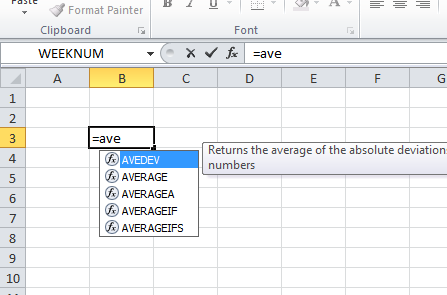
Auto Complete feature is a useful one that is a great help when you develop spreadsheets. Select the cell that you want to put the function and start with an equal sign "=" and the first letter of the function. Excel automatically opens up a drop-down list that show all the possible functions that begin with the letter you typed. There is also a Screen Tip with a short explanation for the function.
You can use the arrow keys to select the function that you want to input and press Tab or double click to insert the function.
Showing posts with label Excel Formulas. Show all posts
Monday, May 28, 2012
Sunday, May 27, 2012
How to Convert Formulas to Values in Excel
Sometimes you want your cells to have just the values instead of the formulas. In this post, we will learn how to copy the values, remove formulas and paste just the values into cells. Here is how to convert formulas to their current values.
Each of the formula you selected and pasted is replaced with the latest values. The cells will no longer be able to perform the equations
1. Select the range of cells consisting formulas that you want to copy the values from.
2. Use the keyboard shortcut key ( CTRL + C ) or the copy button as you see in the picture below to copy the information.
3. Right click on the cells that you want to paste that information and select Paste / Special Values.
Each of the formula you selected and pasted is replaced with the latest values. The cells will no longer be able to perform the equations
Subscribe to:
Posts (Atom)


